Using folder permissions in Signature 365
Use Folder Permissions to limit access to specific folders in Signature 365. When combined with Role-based access control in Signature 365, you can give teammates access to only the areas they need.
The Home folder allows Everyone by default. New child folders use Inherit to follow their parent folder. You must be a tenant administrator to change folder permissions.
For example, you can grant a marketing user access to only the campaigns component within a folder by combining folder permissions and a custom role.
To set permissions on a folder, right-click the folder and select Permissions from the dropdown menu.
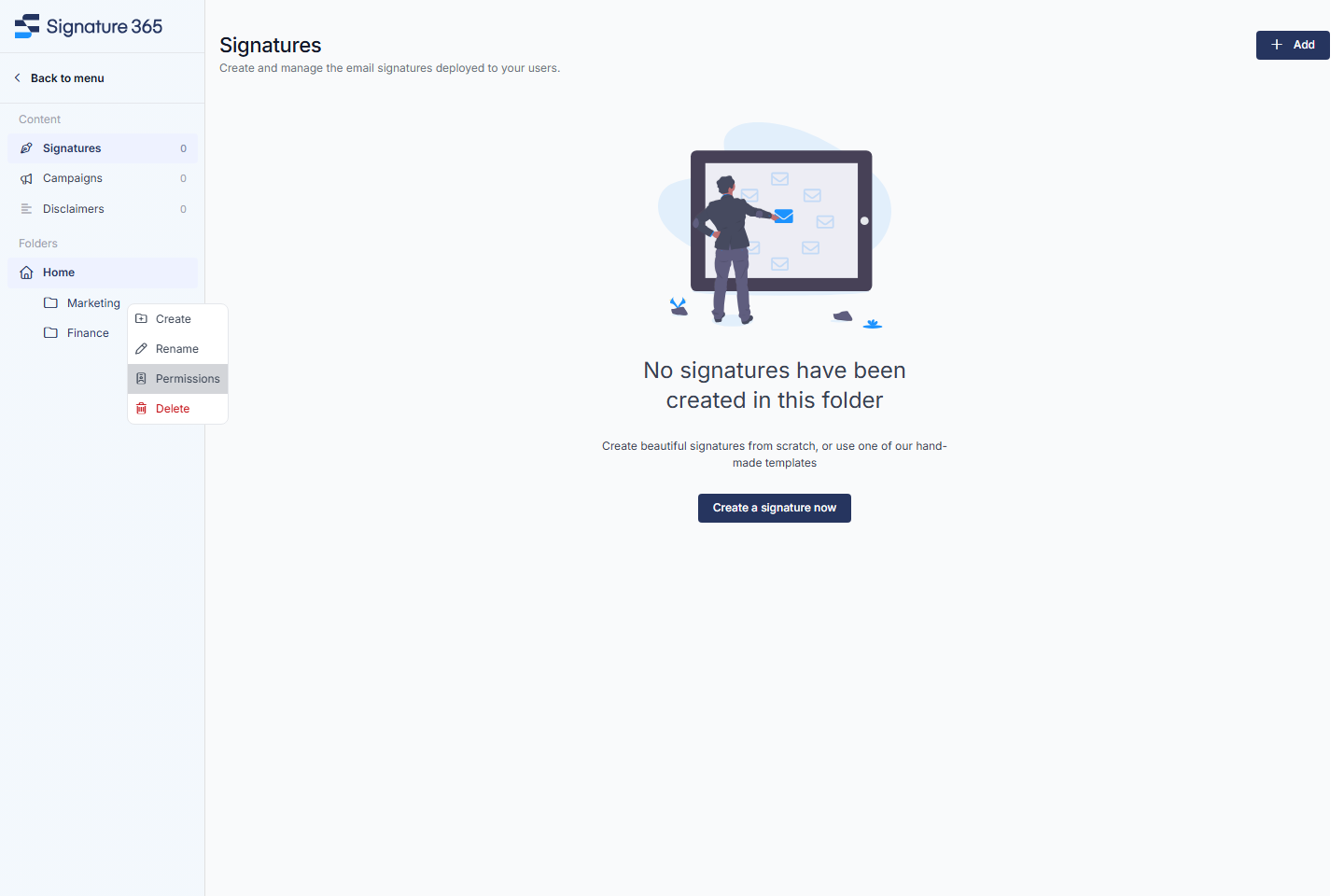
The following options are available for folder permissions:
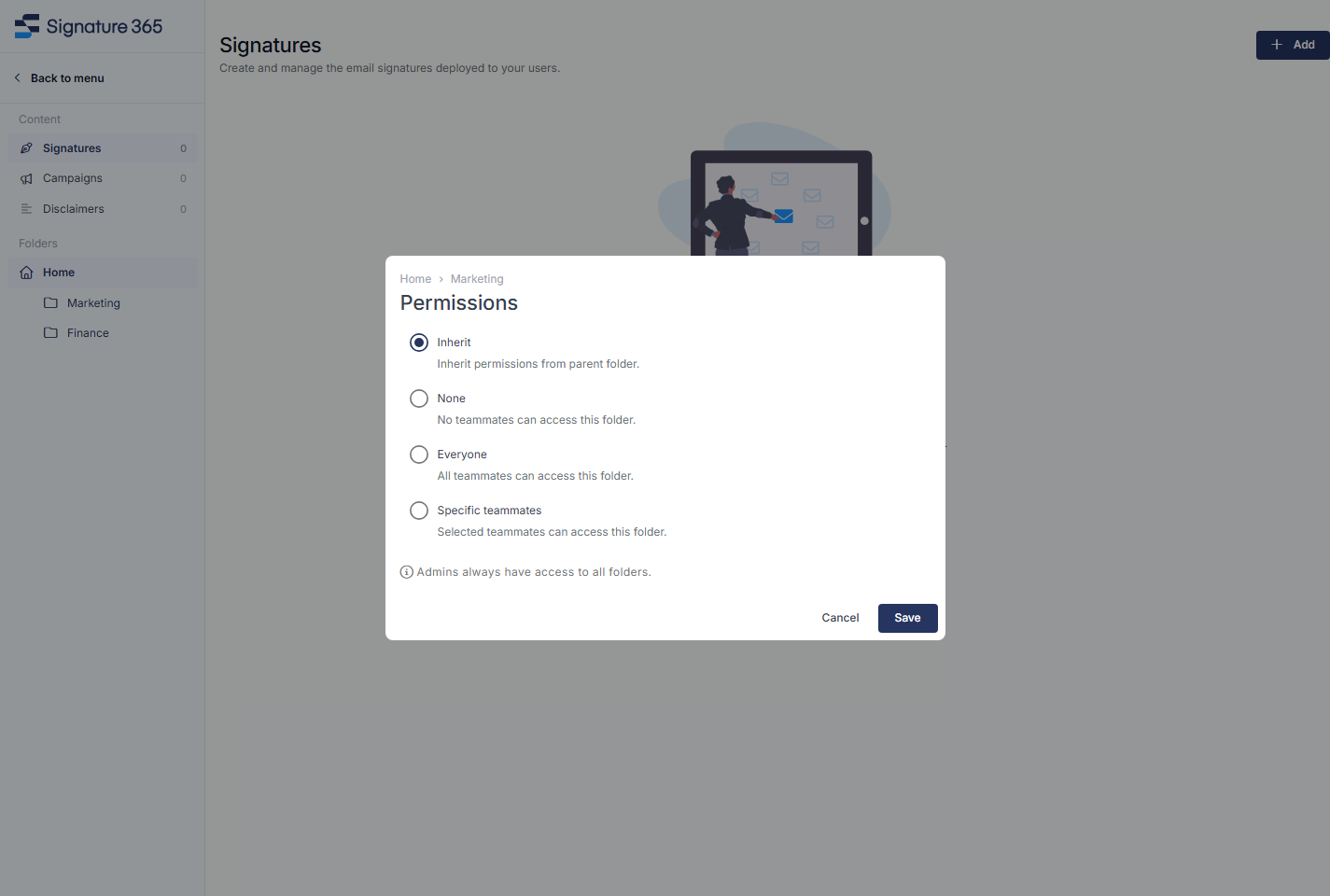
- Inherit inherits all permissions from the parent folder.
- None allows access only to administrators. Administrators always have access to all folders.
- Everyone allows all teammates to access this folder.
- Specific teammates allows access only to the selected teammates.
Select the required option and click Save. If you choose Specific teammates, select the teammates who need access before saving.
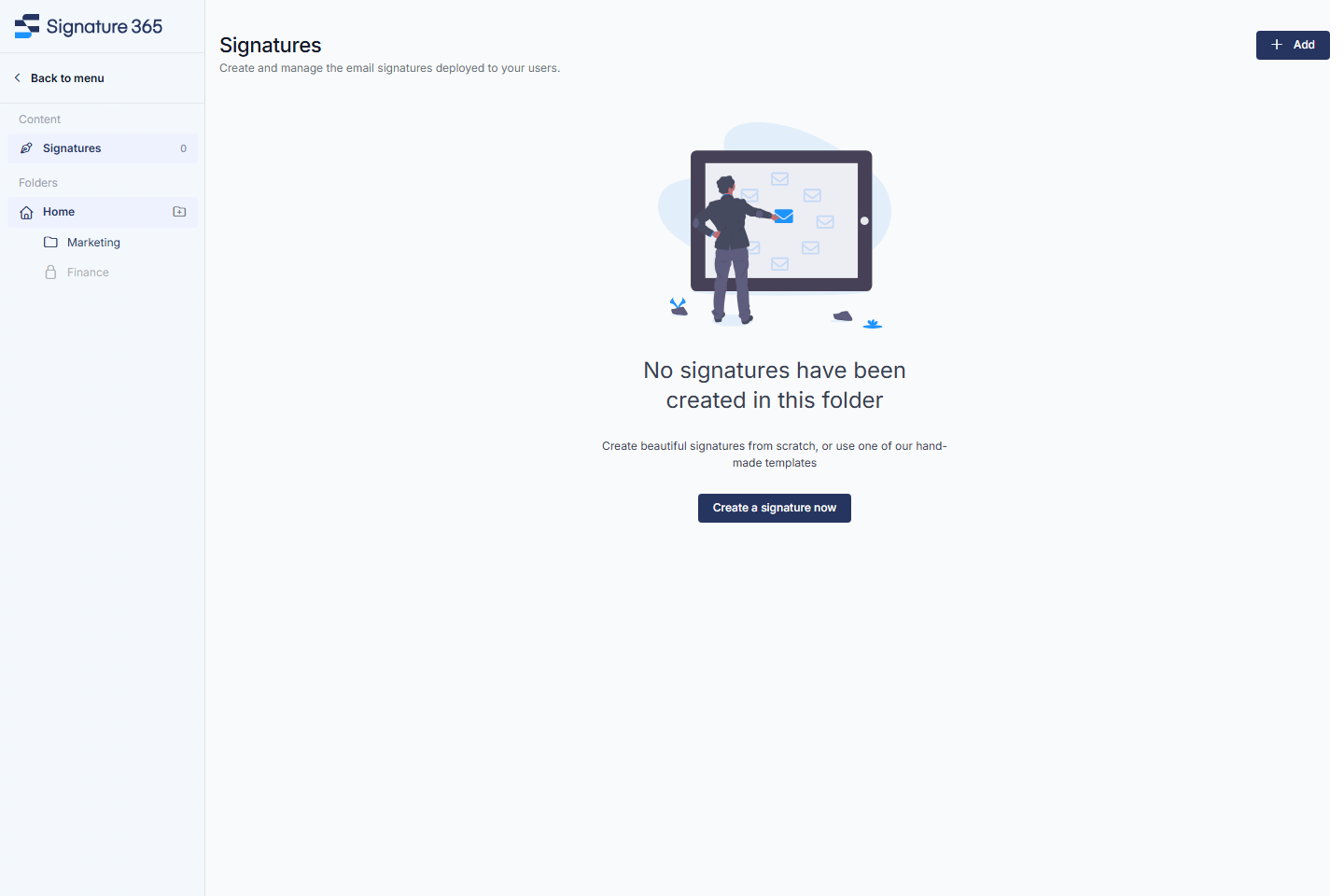
How folders appear depends on your access to Home.
With access to Home, you can see inaccessible folders greyed out and locked:
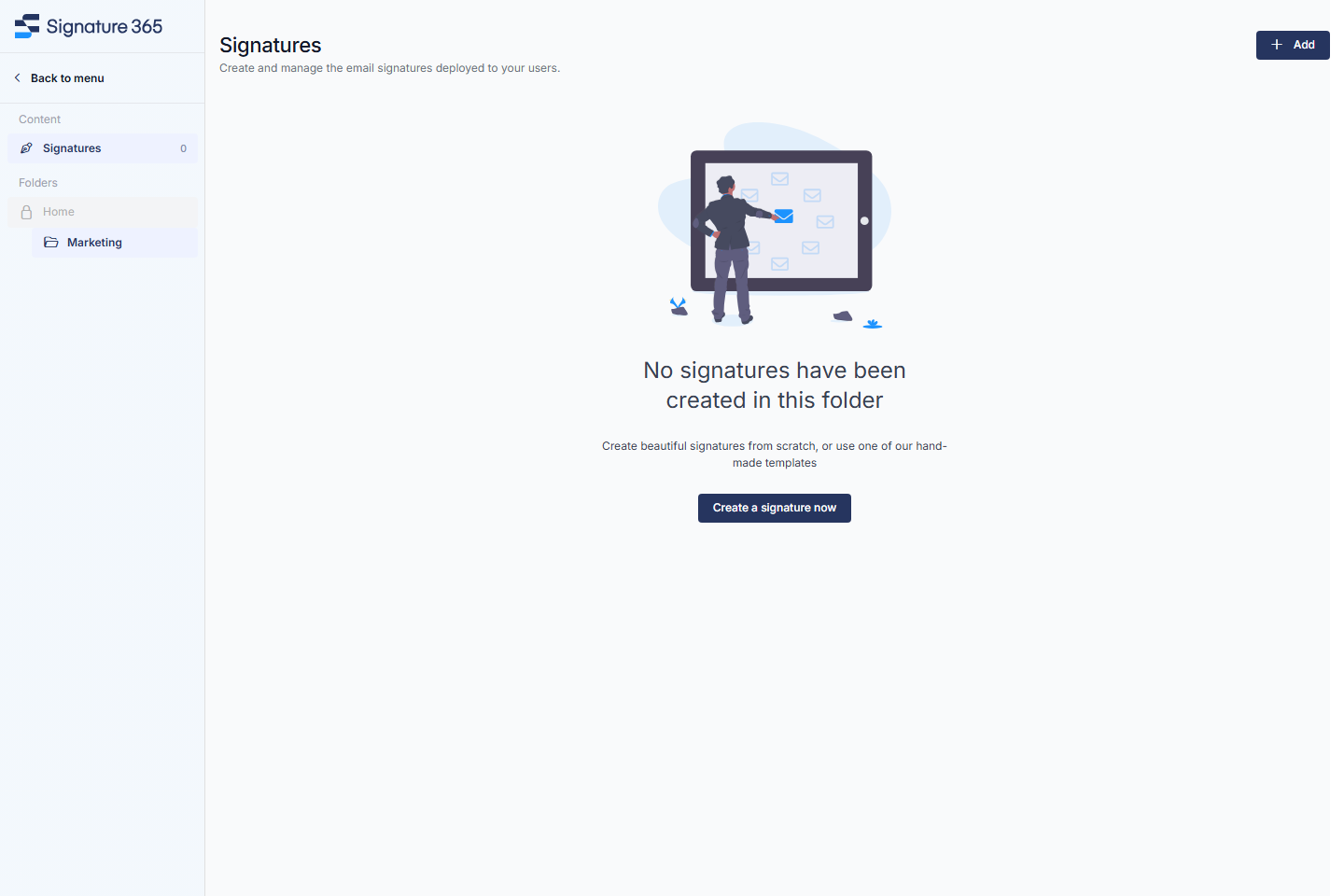
Without access to Home, inaccessible child folders are hidden. Home remains visible and locked: